
How to change the date, time and location on a photo
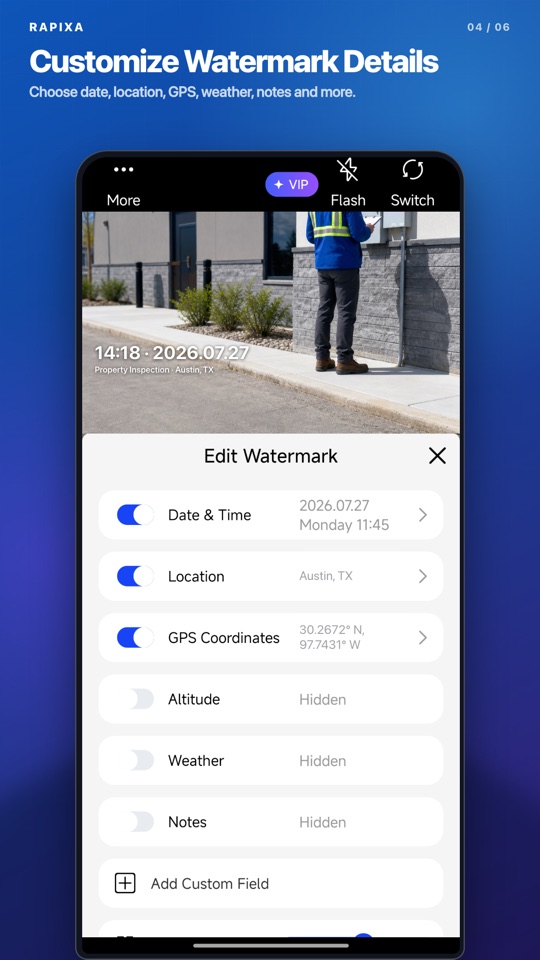
In Rapixa, you can change the date, time and location in a photo watermark before saving. This is useful when you want a different date format, a shorter address or a project location that is easier to read in a report.
Set the details before taking a photo
- Open Rapixa and choose a date and location watermark or a work template.
- Tap the date, time and location fields in the watermark settings. Enter the information you want to show.
- Add a project name, note or company logo if the photo needs more context.
- Adjust the watermark size and position. Keep it away from the work or subject you need to show.
- Check the camera preview, take the photo and review the saved result.
For a photo already in your gallery
Open the existing photo in Rapixa and choose a watermark. Change its date, time and location, then save a new watermarked copy. You can keep the original image and use the copy in your report or share it with your team.
Use a location people can recognise
A street address may be enough for a delivery photo. For an inspection, a building name, floor or work area can be more useful. Put the information your reader needs in the location and notes fields; include GPS coordinates when they help identify the site.
Check readability at the size you will share
Long addresses and large logos can cover important details. Shorten repeated text, reduce the logo size and leave room around the subject. Read the saved photo at normal phone size before sending it.