
How to add a timestamp to existing photos on Android
You do not need to take a photo again to add a date and time stamp. Open the picture from your gallery in Rapixa, choose the details you want to show and save a watermarked copy. This works for organising work photos, travel pictures and before-and-after records.
Add a date and location to a gallery photo
- Open the photo watermark feature in Rapixa and choose a picture from your gallery.
- Select a date and time watermark, GPS layout or work template that fits the photo.
- Set the date, time and location. Add a short description, project name or logo if needed.
- Adjust text size, colour and position. Check that the watermark is easy to read against the image.
- Preview the result and save the new photo. Keep the original for any other use.
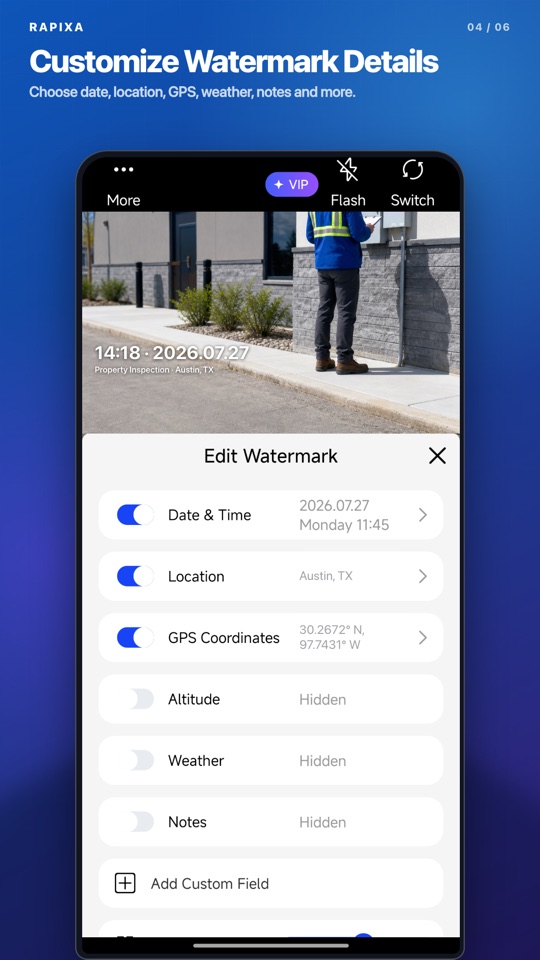
Choose the details for the job
For a repair record, show the equipment or room and a short note about the work. For a site photo, include the project and location. For a travel picture, the date and place may be all you need. A shorter watermark leaves more of the photo visible.
A visible stamp is different from information in the file
A visible timestamp appears on the picture when you share or print it. File information such as a capture date is usually viewed separately in a gallery. Choose the information to display and review it before saving your stamped copy.
When a watermark becomes hard to read
Try a clearer text colour or move it to a quieter part of the image. Avoid placing small text over busy backgrounds, faces or work details. Check the exported photo rather than relying only on the settings screen.